The following guide will show you how to install IPTV 8k Player for free on Firestick, Fire TV and Android TV Google TV devices. We provide a screenshot guide along with setup instructions and tips to help you get the most out of it on your favourite device.
The app alone does not contain live channels for streaming, however, users can request a 1 month test from us by clicking here.
Order NowStep 1 – Prepare your streaming device
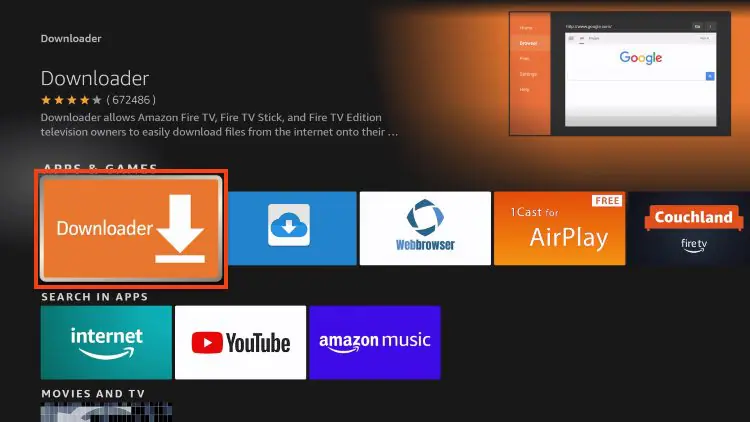
Search for Downloader
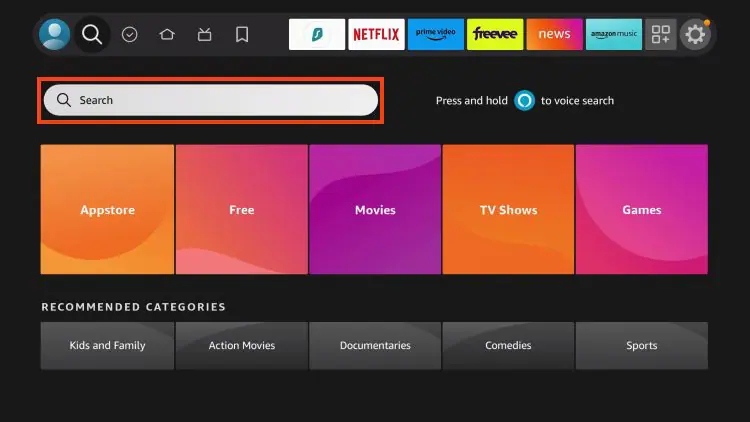
From your device's home screen, hover over the Search button, and then click the Search box.
Find and select Downloader
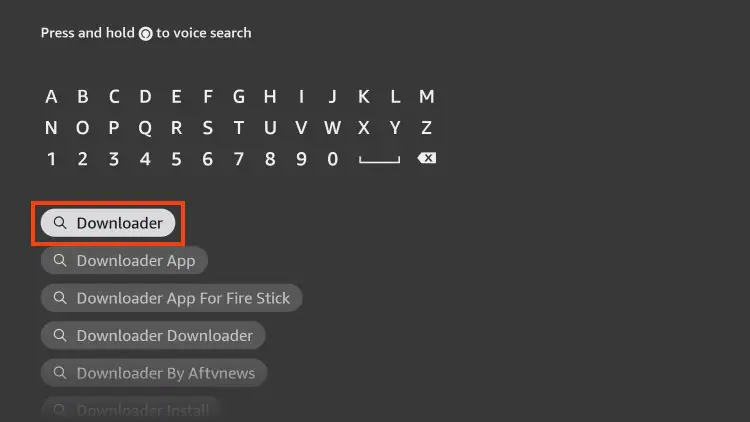
Type "Downloader" in the search box and select it from the results.
Download the App
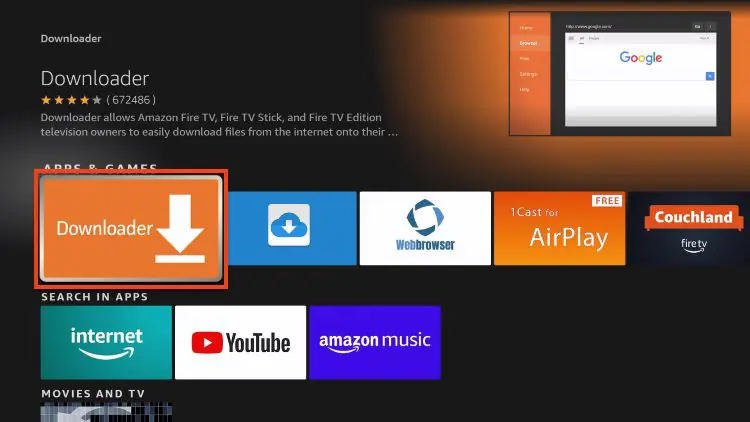
Click Download or Get if the application is not yet downloaded. If you have already installed the Downloader application, go directly to step 2.
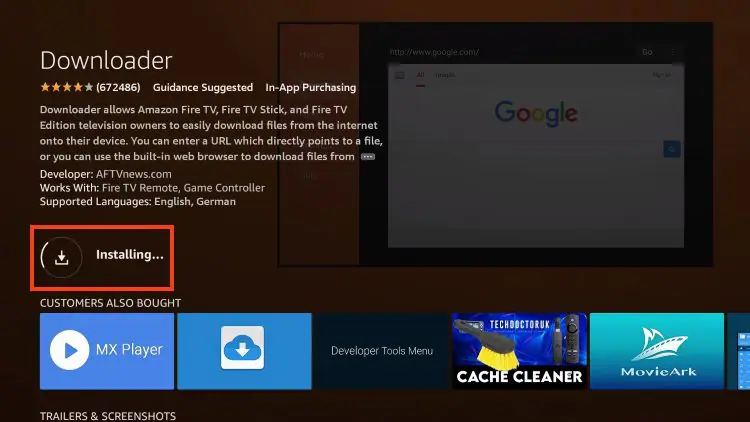
Wait for Installation
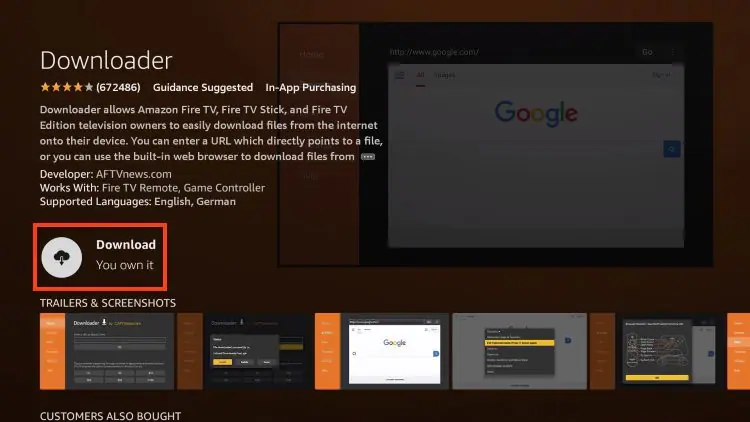
Wait for the app to install.
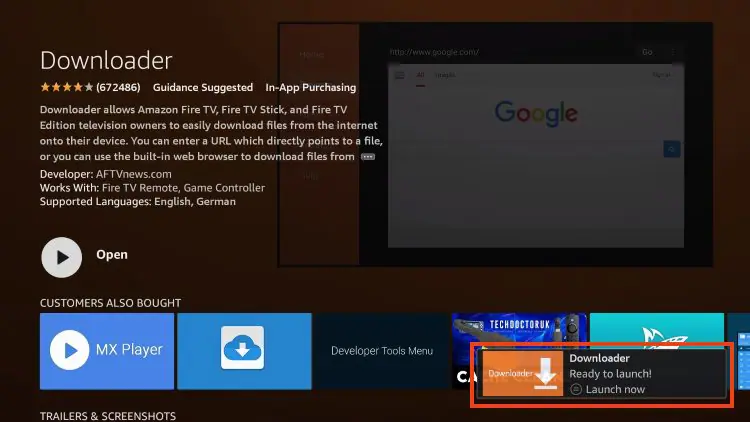
Downloader Ready
You will get the message "Downloader Ready to launch!"
Step 2 – Allow Downloader to install the IPTV 8K Player application
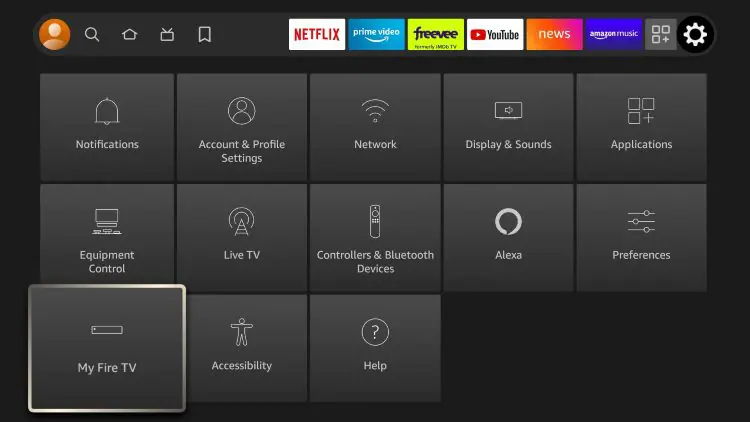
Open Settings
Return to the Home screen to hover over Settings and click My Fire TV.
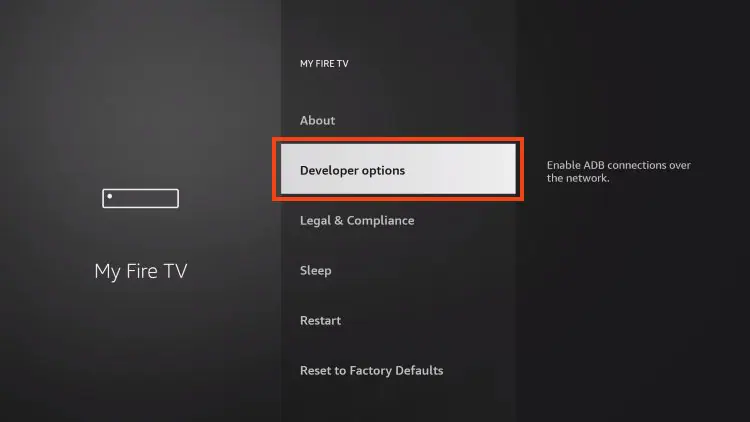
Choose Developer Options
Choose Developer Options.
IMPORTANT: Please see the notes below if you do not see the developer options on your screen.
Install Unknown Apps
Click Install unknown apps.
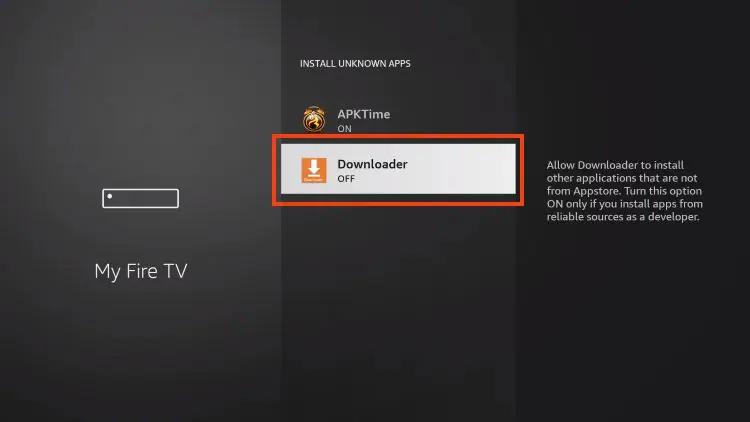
Enable Downloader
Find the Downloader app and click on it.
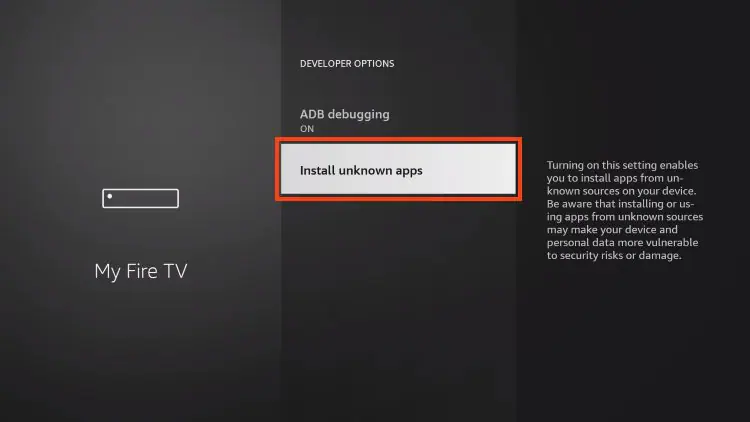
Enable Unknown Sources
This will enable unknown sources for the Downloader app and enable sideloading on your device.
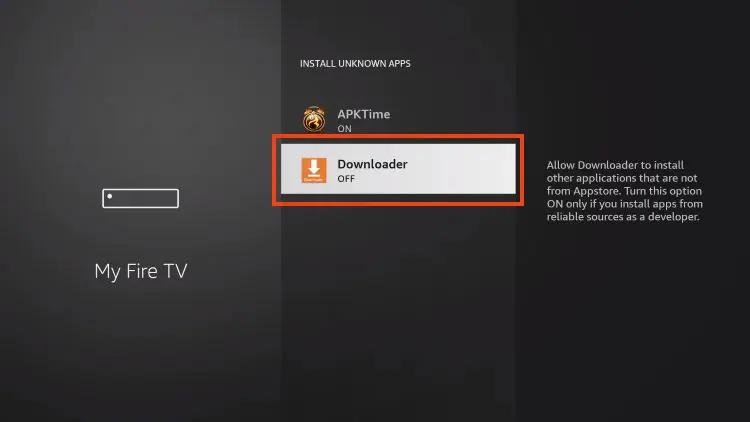
If Developer Options were not available in step 2, follow the next steps:
If you are unable to locate Developer options in Settings, follow the instructions below to enable using the Downloader app.
Go to My Fire TV
Mouse over the Settings icon and click My Fire TV.
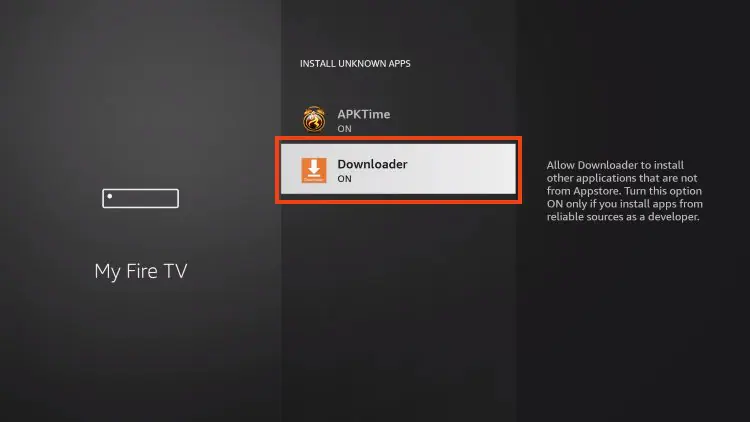
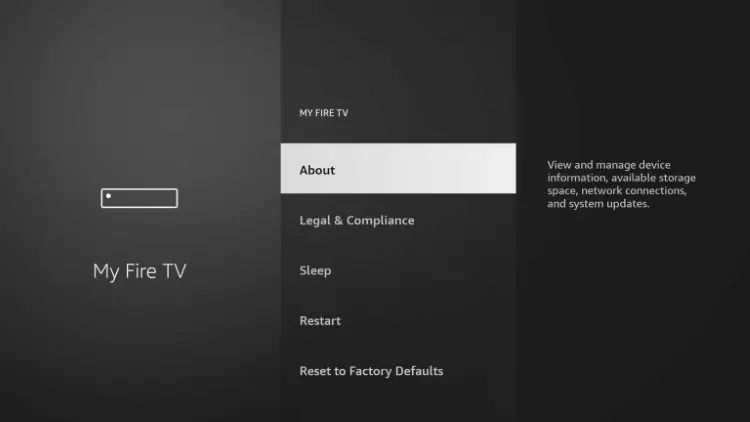
Click About
Click About. Note that the developer options are missing.
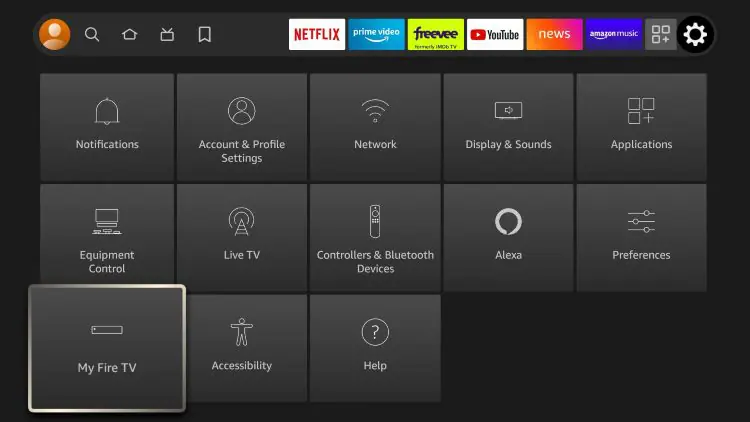
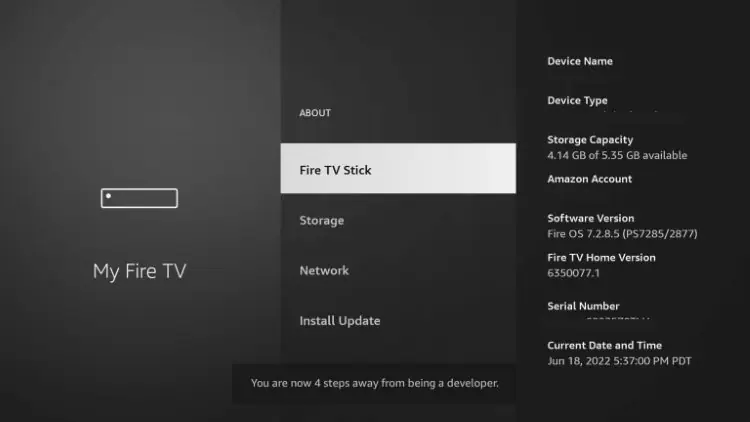
Become a Developer
Hover over Fire TV Stick and click the OK button on your remote 7 times to become a developer.
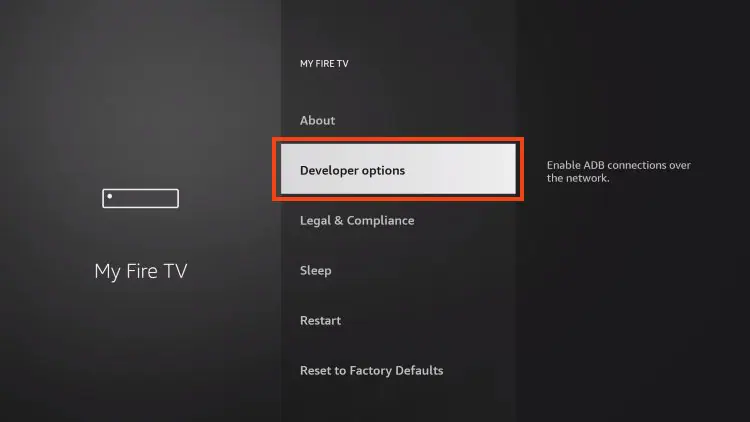
Developer Options Now Available
Click the Back button on your remote and you will notice that Developer Options are now displayed in My Fire TV.
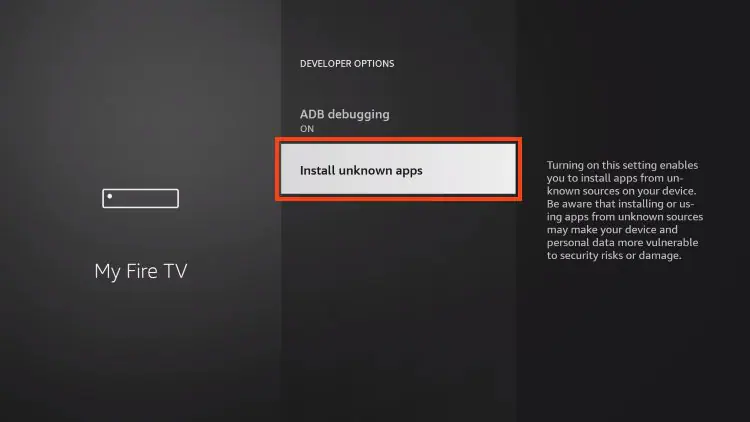
Install Unknown Apps
Click Install unknown apps.
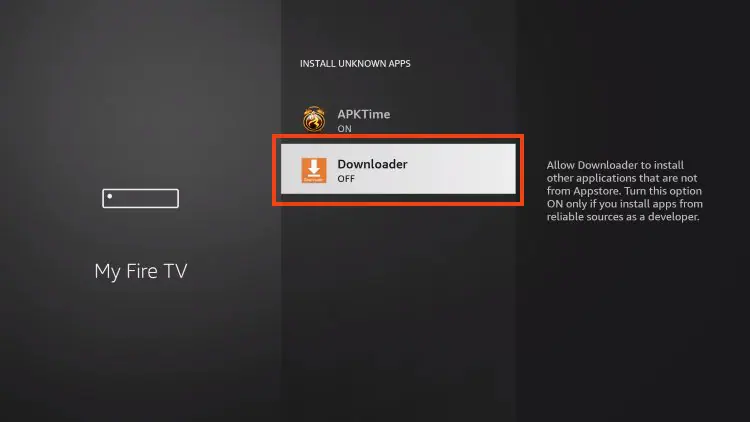
Enable Downloader
Find the Downloader app and click on it.
Enable Sideloading
This will enable unknown sources for the Downloader app and enable sideloading on your device.
Now that I have properly prepared my Firestick, it's time to move on to the next step.
Step 3 – Download and Install IPTV 8K Player
Launch Downloader
Launch the Downloader app.
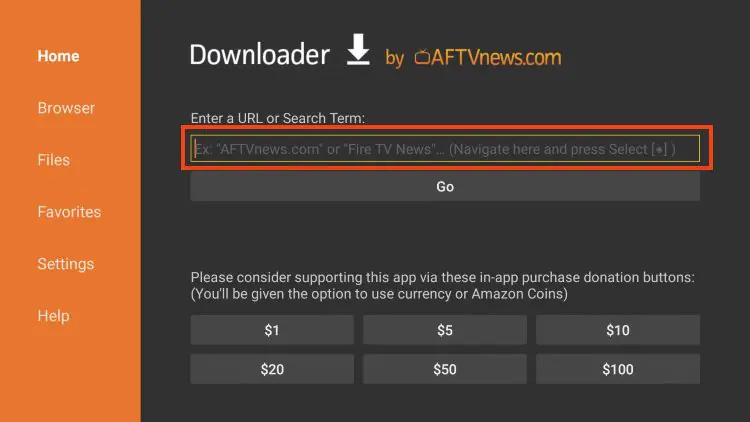
Enter Download Code
Hover over the URL bar and click the select button on your remote.
Type Download Code
Type download code 439873 and click Go.
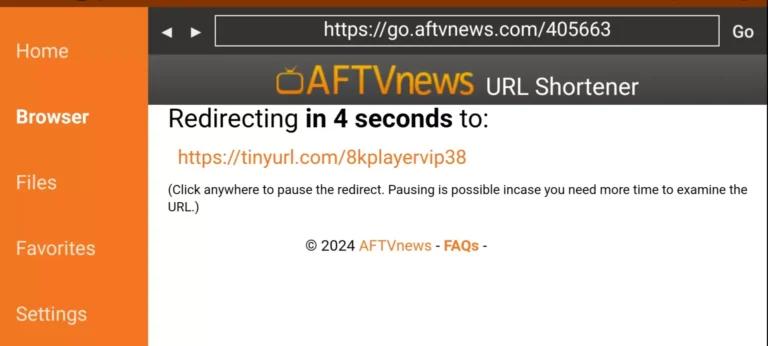
Wait for Redirect
You will then encounter a redirect page. Wait 4 to 6 seconds. If the download does not start, click on the link.
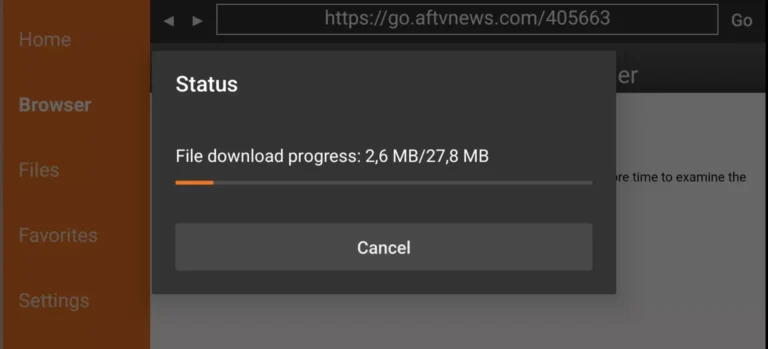
Download in Progress
Wait for the app to download.
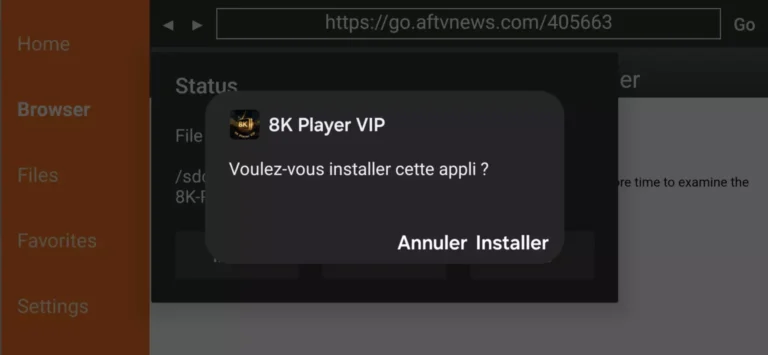
Install the App
Click Install.
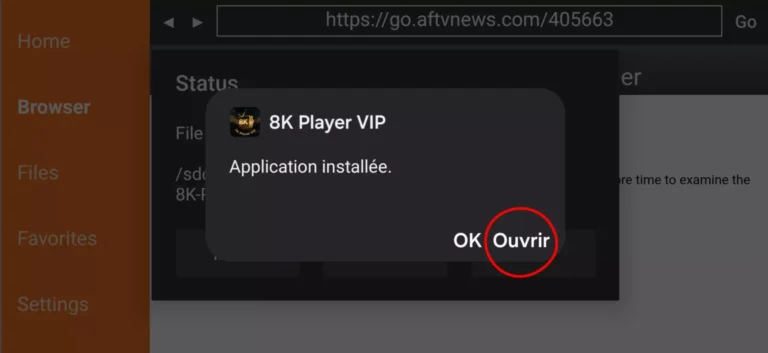
Installation Complete
The application is installed.
Step 4 – How to configure IPTV 8K Player
After installation, you can launch the application to use it.
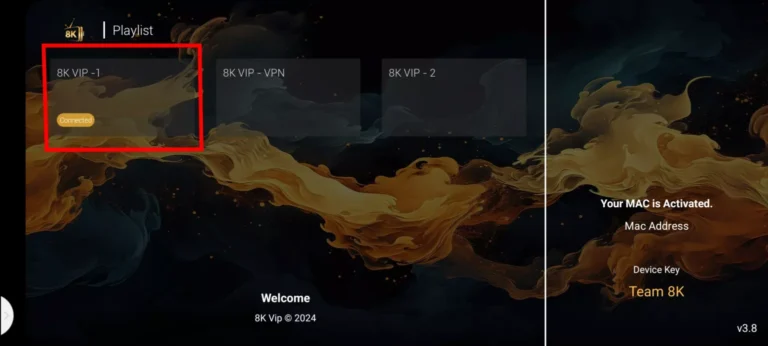
Launch 8k VIP
Click on 8k VIP to open the application.
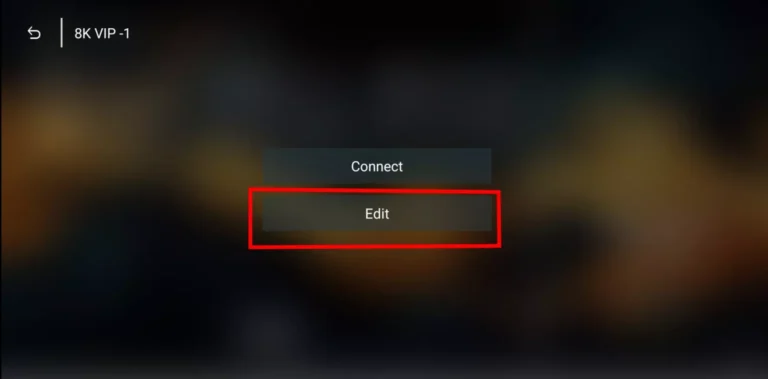
Click Edit
Click Edit to configure your account.
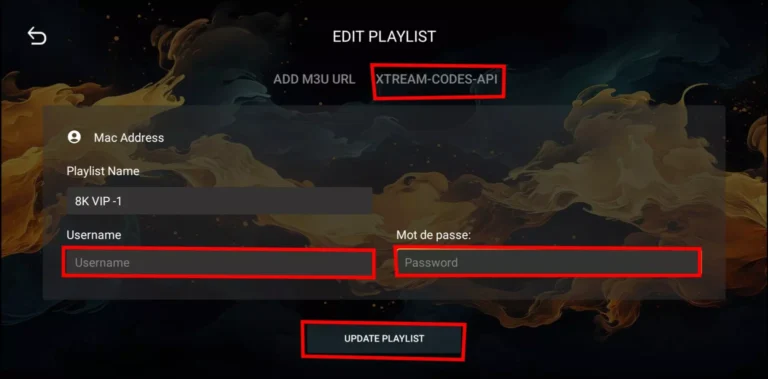
Enter Account Information
Enter the account information (Playlist Name + Username + Password) and click Update Playlist.
If you do not yet have a subscription, you can order by this Link OR ask us by WhatsApp.
Note: If you still have issues, please take a photo of your Mac address and device key with your phone and send it to our team via EMAIL: contact@8k-iptv.com or contact us via WhatsApp.
Step 1 – Prepare your streaming device
Search for Downloader
From your device's home screen, hover over the Search button, and then click the Search box.
Find and select Downloader
Type "Downloader" in the search box and select it from the results.
Download the App
Click Download or Get if the application is not yet downloaded. If you have already installed the Downloader application, go directly to step 2.
Wait for Installation
Wait for the app to install.
Downloader Ready
You will get the message "Downloader Ready to launch!"
Step 2 – Allow Downloader to install the IPTV 8K Player application
Open Settings
Return to the Home screen to hover over Settings and click My Fire TV.
Choose Developer Options
Choose Developer Options.
IMPORTANT: Please see the notes below if you do not see the developer options on your screen.
Install Unknown Apps
Click Install unknown apps.
Enable Downloader
Find the Downloader app and click on it.
Enable Unknown Sources
This will enable unknown sources for the Downloader app and enable sideloading on your device.
If Developer Options were not available in step 2, follow the next steps:
If you are unable to locate Developer options in Settings, follow the instructions below to enable using the Downloader app.
Go to My Fire TV
Mouse over the Settings icon and click My Fire TV.
Click About
Click About. Note that the developer options are missing.
Become a Developer
Hover over Fire TV Stick and click the OK button on your remote 7 times to become a developer.
Developer Options Now Available
Click the Back button on your remote and you will notice that Developer Options are now displayed in My Fire TV.
Install Unknown Apps
Click Install unknown apps.
Enable Downloader
Find the Downloader app and click on it.
Enable Sideloading
This will enable unknown sources for the Downloader app and enable sideloading on your device.
Now that I have properly prepared my Firestick, it's time to move on to the next step.
Step 3 – Download and Install IPTV 8K Player
Launch Downloader
Launch the Downloader app.
Enter Download Code
Hover over the URL bar and click the select button on your remote.
Type Download Code
Type download code 439873 and click Go.
Wait for Redirect
You will then encounter a redirect page. Wait 4 to 6 seconds. If the download does not start, click on the link.
Download in Progress
Wait for the app to download.
Install the App
Click Install.
Installation Complete
The application is installed.
Step 4 – How to configure IPTV 8K Player
After installation, you can launch the application to use it.
Launch 8k VIP
Click on 8k VIP to open the application.
Click Edit
Click Edit to configure your account.
Enter Account Information
Enter the account information (Playlist Name + Username + Password) and click Update Playlist.
If you do not yet have a subscription, you can order by this Link OR ask us by WhatsApp.
Note: If you still have issues, please take a photo of your Mac address and device key with your phone and send it to our team via EMAIL: contact@8k-iptv.com or contact us via WhatsApp.