Follow these simple steps to install and configure IPTV Smarters Player on your Apple devices. This guide works for iPhone, iPad, and Mac.
Order NowInstallation Steps for iOS Devices
Step 1: Download IPTV Smarters App
Start by downloading the IPTV Smarters app from the Apple Store through this URL:
https://itunes.apple.com/us/app/iptv-smarters-player/id1383614816
Or you can search for it on the App Store
Step 2: Install the App
Install the app on your iOS device.
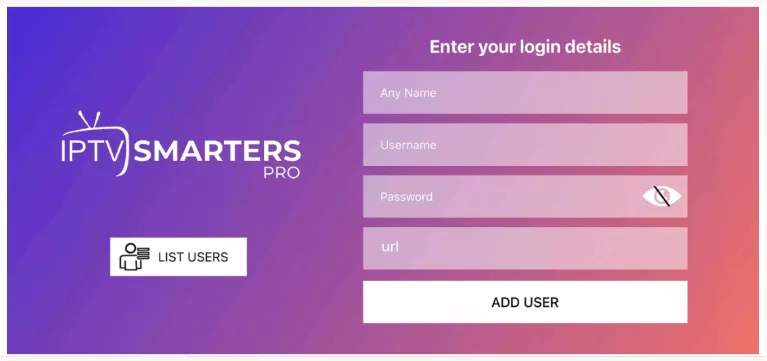
Step 3: Enter Login Details
Enter the login details that we have provided you after you get a subscription with us.
Now click on "ADD USER" to proceed to the next section.
Step 4: Wait for Loading
Wait some seconds for the app to load your subscription.
Step 5: Access Live TV
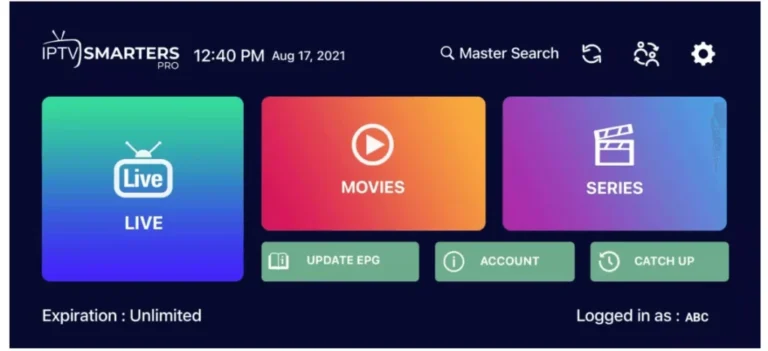
Now click on the "Live TV" icon as depicted in the image via a red arrow.
Step 6: Select Channel Group
Now you must select the channel group that you want to watch and proceed to the next section.
Step 7: Watch Your Channel
Now you must click on the channel name and then double-click on the small screen to turn into full screen as the final step.
Step 8: Install EPG (Optional)
To add EPG no need to add any EPG URL, just click on "Install EPG". Done!
Installation for Mac
MAC Method
Download the IPTV Smarters app through this URL:
https://www.iptvsmarters.com/download?download=mac
Follow the same steps as iOS after installation.
Note: If you still have issues, please take a photo of your Mac address and device key with your phone and send it to our team via EMAIL: contact@8k-iptv.com or contact us via WhatsApp.